Tal Kravarusic, Founder
Your AI assistant can now build widgets for your iPhone
Turn a conversation with your AI assistant into a useful widget on your iPhone Home Screen.
You ask your AI assistant for a morning briefing. It checks the information you’ve connected, brings the useful parts together, and gives you a summary.
Then you close the conversation.
What if that briefing could stay somewhere you see it throughout the day?
With Glance, you can ask an AI assistant to create a widget for your iPhone Home Screen. Describe what you want to see, choose the information it should use, and let the assistant build a layout for it.
It could be a daily briefing, a dashboard for your business, or a place to keep track of your next creative project. The widget stays on your Home Screen, ready when you need it.
Start with what you want to see
You don’t need to begin with a template or know how to code a widget. You can start with a request:
“Create an extra-large morning briefing widget with the weather, my upcoming calendar events, and three AI news headlines. Keep the design clean and easy to read.”
Your assistant can use Glance to create a layout and add the information available to it. You can then tell it what to change: make the weather bigger, remove a section, use different colors, or show fewer headlines.
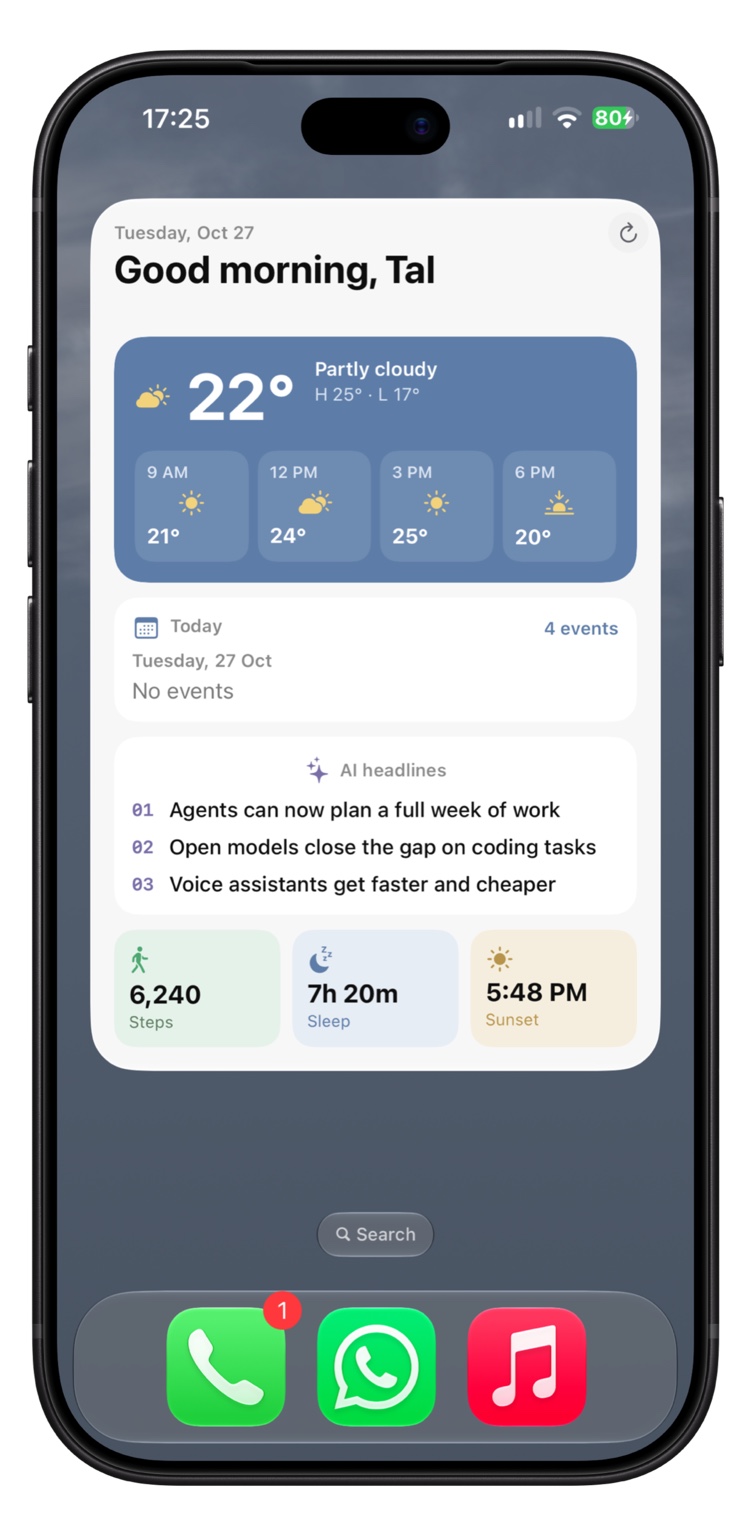
An example of a morning briefing bringing several types of information into one widget. The information available depends on the sources you connect.
The result isn’t a screenshot of a conversation. It’s a native iPhone widget, designed for a quick look at the information you care about.
A dashboard for your business
A business owner might want a different kind of briefing. Instead of opening several dashboards to check sales, signups, and orders, they could ask for the numbers that matter most to appear together.
“Create a business dashboard widget showing today’s revenue, a chart of the last seven days, new signups, and orders. Add a section for a customer I need to call back today.”
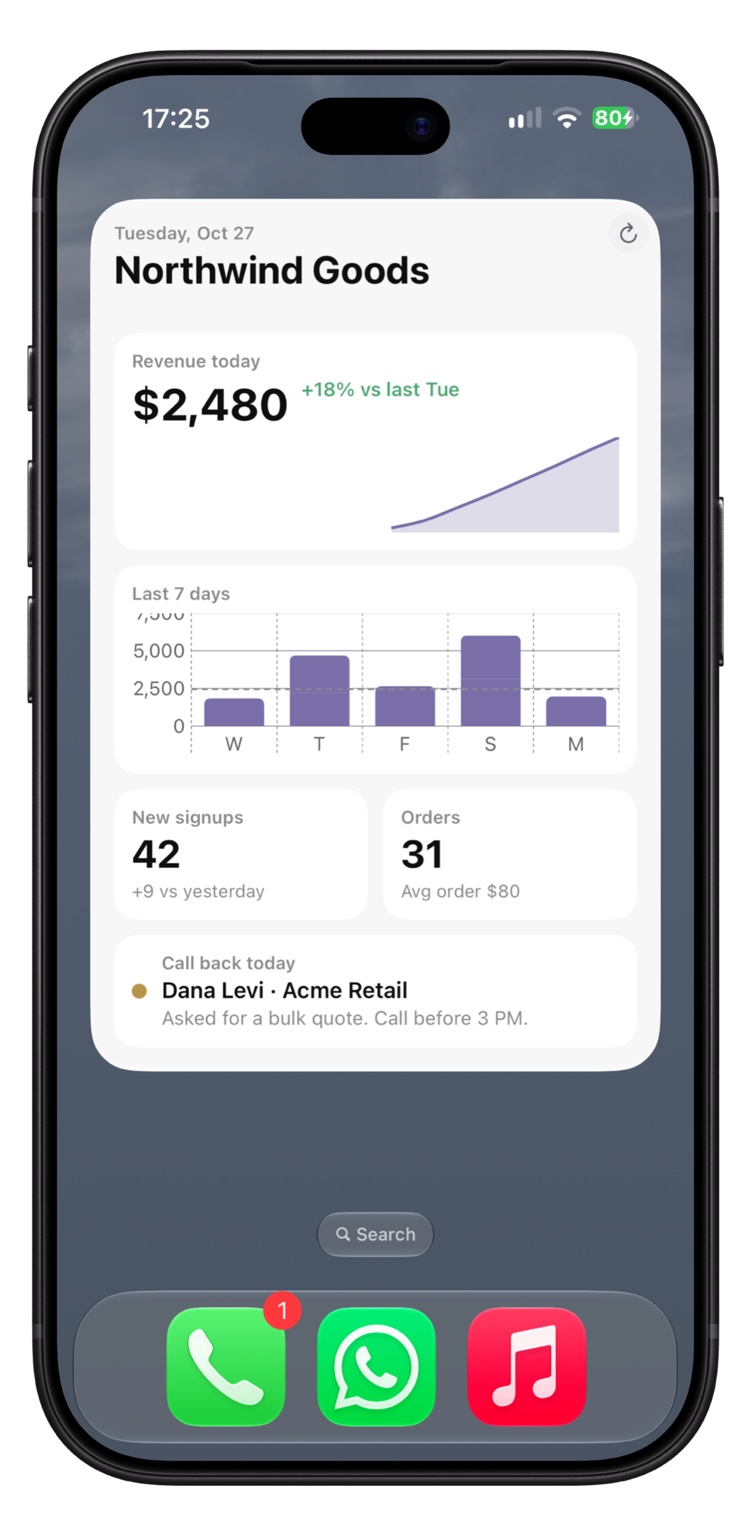
An illustrative business dashboard. The numbers and customer shown are example data.
The assistant needs access to the relevant data sources to fill the widget with real information. Depending on where your data lives, that could mean connecting a service to your assistant or using a custom connection in Glance.
The point is that you decide what deserves a place on the screen. A founder might track new users. A shop owner might care about orders. An agency might want to see campaign performance or leads.
A workspace for creators
A widget can also help you keep track of work that doesn’t fit neatly into a traditional dashboard.
Imagine you’re a photographer preparing a new preset pack. You want to see the countdown to launch, your latest post, and how your audience is growing.
“Make me a creator dashboard with a countdown to my next launch, my latest post, subscriber growth, and upcoming events. Use warm colors and a simple layout.”
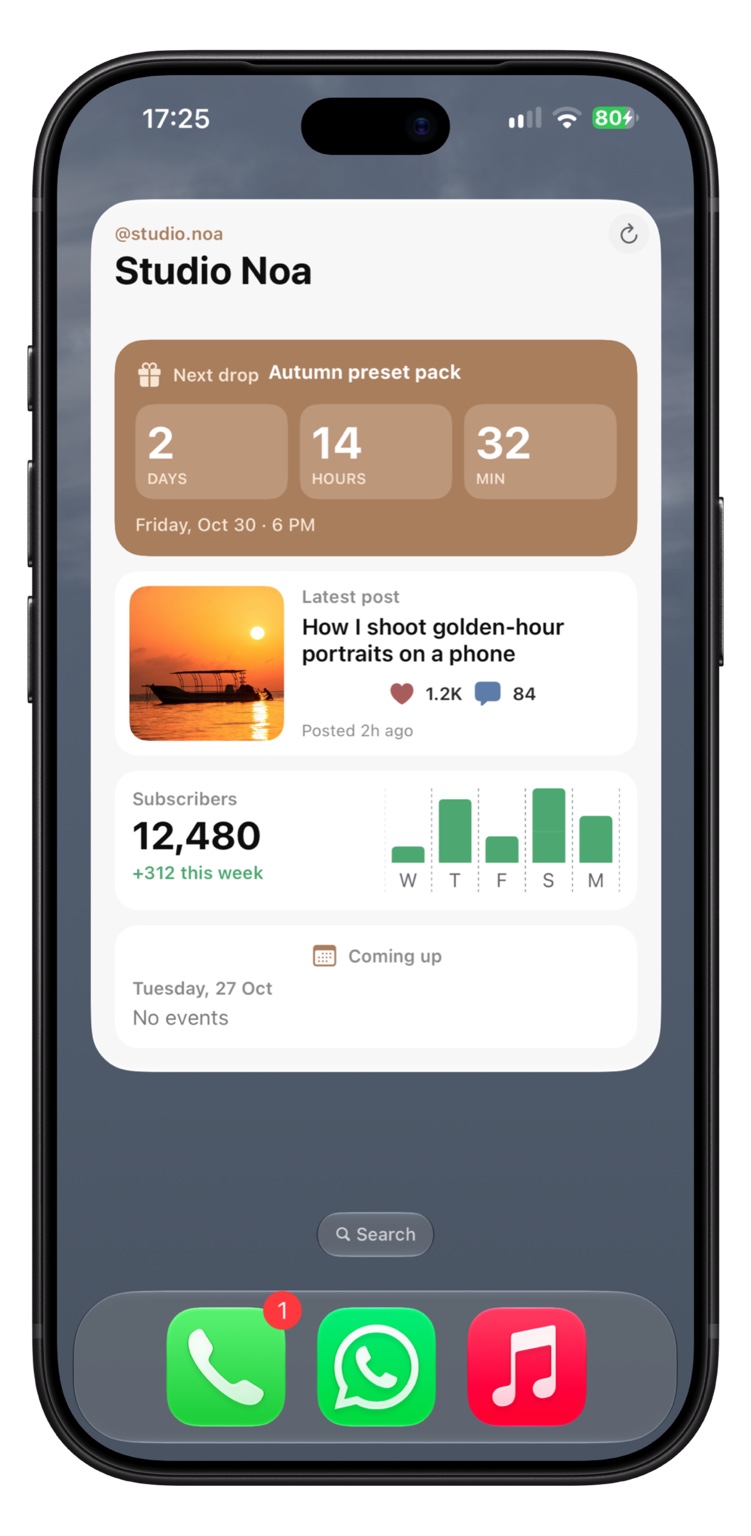
An illustrative creator dashboard combining a launch, content and audience metrics.
You can ask the assistant to refine the design as your needs change. Put the launch front and center this week; after it’s over, give the space to something else.
Make it yours through conversation
The first version doesn’t have to be perfect. You can keep working on the widget the same way you’d work on any other request:
- “Make the text larger.”
- “Show only the three most important items.”
- “Use a dark background.”
- “Add a chart for the last seven days.”
- “Move the calendar to the top.”
The assistant handles the widget layout through Glance. You guide it by explaining what matters to you.
Glance also supports interactive elements, so a widget can do more than display a static set of numbers. Depending on the design, you can reveal information, switch between views, or open a relevant link.
Keeping the information fresh
A useful widget is one you can come back to. After creating a layout, your assistant can update its content as new information becomes available. You can also use a scheduled task where your assistant supports one, or connect a data source through Glance.
For example, you could ask for a fresh news briefing each morning or updated business metrics during the day. The setup and refresh frequency depend on the assistant, the connected sources, and the type of widget you choose.
You can keep the layout consistent while the information changes. Or, with Glance’s UI on Demand, an assistant can send a new layout with an update when the design itself needs to change.
How to get started
- Download Glance and create an account.
- Connect Glance to your AI assistant, such as ChatGPT or Claude.
- Describe the widget you want. Include the size, the information, and any preferences for the design.
- Connect the sources you want to use, if your widget needs information from other services.
- Add the Glance widget to your iPhone Home Screen, then ask your assistant to adjust it until it feels right.
Start with something small: one number you check every day, a short news briefing, or the next thing on your calendar. Once it’s on your Home Screen, you’ll quickly get a sense of what else you’d like to see there.
Your AI assistant is already helping you find and organize information. Glance gives that information a place to live after the conversation is over.